


5.2. Analyzing Security Context with eSecurity
Syscob Export-It and Export-It Plus may be installed on any edition of Windows® from Windows 95 or NT4 through Windows 7 or Server 2011. That means, in Microsoft terms, they are “legacy” applications (i.e. an application that can run on Windows® editions prior to the latest being sold by Microsoft). Syscob, and other “legacy” applications, have not changed their requirements since Windows NT days—but since the release of Windows Vista Microsoft has been changing the security context in which the applications run (primarily for financial, not security, reasons).
The requirements on the Windows® system where a Syscob Export-It or Export-It Plus application is installed are simple and are summarized in the Requirements Checklist topic.
Since recent editions of Active Directory™ and the new [oxymoronic] concept of “limited administrators” can affect security on a computer where Syscob applications are installed (i.e. both domain and local logons can be affected by recent Microsoft security changes) the eSecurity Analysis Tool was created to analyze the security context in which a Syscob application will execute. This tool may be downloaded by clicking this link eSecurity (2.82 Mb) and saving the executable into the “local” folder (or the “local” folder when only Export-It Plus is installed).

Running eSecurity in an Interactive GUI Window
Although primarily intended for use on Windows Vista, or later, versions of Windows® this utility may be run on Windows NT4, 2000 (Server or Workstation), XP, Server 2003, Vista, Server 2008 (or 2008R2), Windows 7 and Server 2011. It is not needed on Windows 95, 98, 98SE or ME which do not have security issues with “legacy” applications. The remainder of this topic explains how this utility can be used.
When the eSecurity icon is double-clicked in a window, or run from a shortcut, or via eCopilot, or from a window with no parameters, a GUI window will be created to allow the user to control what analysis options are used. The initial window is similar to this [image is ¾ scale with notes overlaid in red]:

The default is to perform all analyses. That is the Full context choice in the GUI window, but the user may change to the Only choice which will enable the option boxes for individual selection of the analysis options. When the button is pressed those options which have a tick in their box will be performed.
Here is an example of what the window would look like after performing the analysis with only Computer and User options selected for analysis:
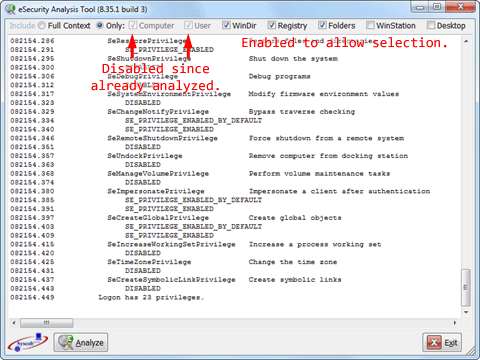
In the example above the results thus far can be seen in the scrollable central pane of the window. At this point the user may choose to press the button. Or select other options and press again to include them. However, when all options have been analyzed the button will be disabled and the window will look like this:

After the button is pressed and the window closes the text file, in the same folder as the executable, will contain the results of the security analyses performed. This file should be interpretable by inhouse IT staff or it may be emailed, as a text attachment, to Syscob Support staff for analysis.

Sample Files
The following table contains nine [9] sample files, but with extension changed from “” to “” for maximum browser compatibility. They illustrate the differences between the Administrator user, a member of the Administrators group and a member of the Users group on Windows 2000 SP4, Windows XP SP3 and Windows 7 SP1. All are for a local logon (domain logon security must provide a similar security context for “legacy” applications):
| Windows 2000 SP4 | Windows XP SP3 | Windows 7 SP1 | |
| Administrator user | Sample log | Sample log | Sample log |
| Administrators member | Sample log | Sample log | Sample log |
| Users member | Sample log | Sample log | Sample log |
All of the links in the table above will open the sample log in a new browser tab or window. Be aware that the examples in the bottom row do not have sufficient privileges and permissions to run a “legacy” application.

Running eSecurity as a Windows® Command
When is run with command parameters, as from a window or batch command file, it will run “silently” without a Graphical User Interface [GUI] window. The valid command line parameters will be interpreted from left-to-right and may include one or more of these values:
- evaluates security context on this host,
- evaluates user logon security for this host,
- evaluates security of Windows® directory,
- evaluates security on Syscob Registry keys,
- evaluates security of Syscob application folders,
- evaluates security on the WinStation,
- evaluates security on the Desktop, and
- means all of the options above and is the default.
Any of the options above may be preceded by a minus sign [“”] to indicate the option is not desired. For example, the command “” would analyze all of the options except for the WinStation and Desktop security contexts. But should the command “” be used it would include all options since the “” parameter follows, and thus overrides, the exclusion of user security analysis. If any parameter is not valid then this dialog would be displayed:

Should any mixture of valid and invalid parameters be present on the command line the dialog above will be displayed, the invalid parameter(s) will be ignored and any valid options (or the “” default when none) will be performed. Thus the normal convention (i.e. an “” command) would show the valid parameter options, but it would also run the analysis for all options.
After the command completes the text file will be located in the same folder as the executable with the results of the security analyses performed (just as for interactive use).
See the Microsoft KB937624 “Fix” appendix for instructions on how to prevent Windows® Local Security Authority [LSA] from denying administrative privileges and permissions to a user logon when such a situation is revealed by the eSecurity Analysis Tool.