


5.4. How to Check Export-It Expiration
As explained in the Maintenance Invoice topic Syscob applications are only enabled when covered by a current [unexpired] maintenance code. Syscob generates a maintenance code for a site based on a maintenance invoice that covers a specific period. In the case of the Export-It Plus commercial export documentation application Syscob generates the maintenance invoice and then the corresponding maintenance code. For the Export-It EDI application the maintenance invoice is generated by a user then sent to Syscob so that they may generate and return a maintenance code from the information on that invoice. This mechanism allows the exporter to choose the features and length of coverage that best suits their requirements.
Major Export-It application modules show the days of remaining maintenance coveragein the Titlebar of their main window. However, it may sometimes be necessary to know the expiration dates and enabled features (which were chosen when the prior maintenance invoice was generated). The eInvoice Maintenance Period viewer can easily provide that information.

eInvoice Maintenance Period Viewer
When the eInvoice icon is double-clicked in a window, or run from a shortcut, or via eCopilot, or from a window without parameters it will open a window that looks like the following example. The information displayed is from the current [active] maintenance code for the exporter site:
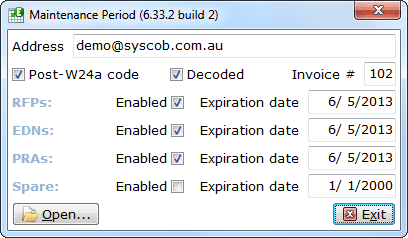
This small window in screen center shows the dedicated EDI email address, the maintenance invoice number and, for each feature, whether the feature is enabled [not expired] and the expiration date (plus technical indicators for “Post-W24a code” format and “Decoded” successfully). As this is generally all the information of interest (and the file was automatically located) the user will only press the button to close and quit once the information is seen.
However, it is conceivable that the current code file is damaged, and not decodable, or that a “backup” or renamed copy of that file needs to be examined for validity. In such a case the button can be pressed to open a dialog where a file other than current one can be selected.
Should a maintenance code file be corrupt, whether the current one or a file selected via the button, then an Error dialog like the following example will appear:
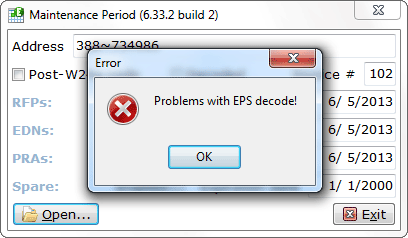
In such a case the user can only answer the dialog and then either another file or .
Since a maintenance invoice generated by an exporter for their Syscob Export-It EDI application specifies a “start date” the use of eInvoice enables the creation of a new maintenance invoice in advance of the seven [7] day “countdown” to expiration that occurs during use of the application. This can be handy when an exporter will not be operating for a period or when it is suspected that expiration may occur during the holidays of the staff member who normally handles maintenance renewal.